When distance, illness, or circumstances keep family apart, a live stream brings everyone together for the moments that matter most. This guide walks you through everything you need to know about live streaming a funeral service — from understanding why it matters, to pressing the "Go Live" button on your phone with TributePoint.
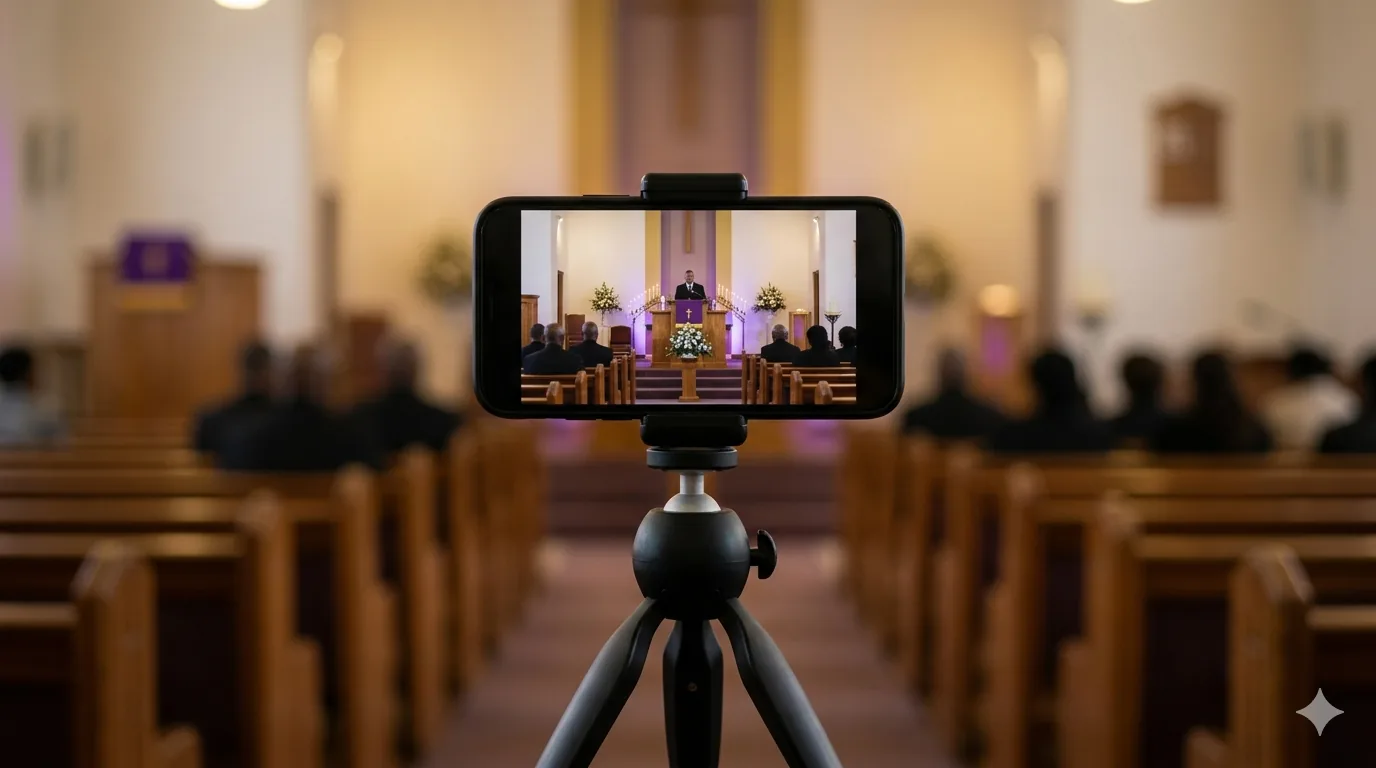
Why Live Stream a Funeral Service?
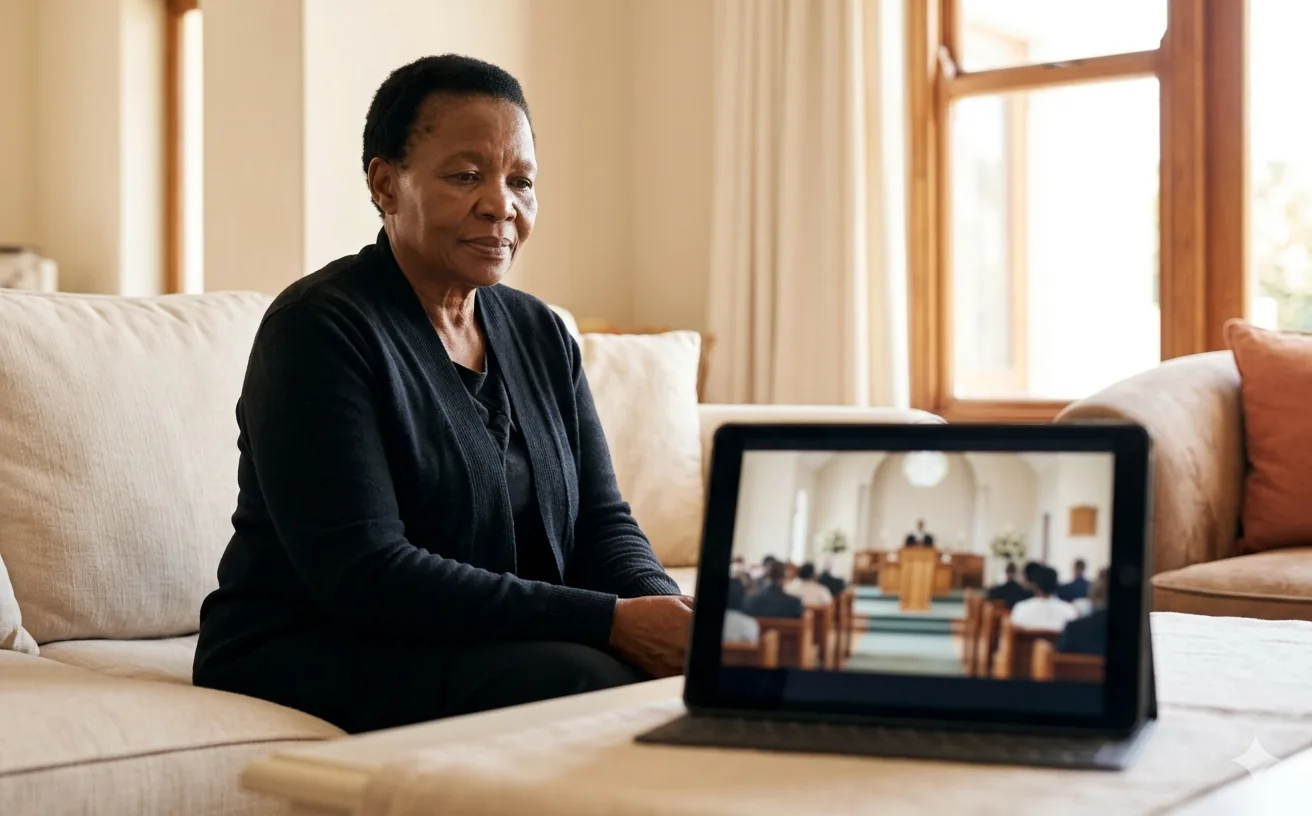
Not everyone who cares can be there in person. A grandmother in another province. A cousin living overseas. A childhood friend who cannot take time off work. A family member too ill to travel. These are the realities of modern life — and they should not mean missing a chance to say goodbye.
Live streaming a funeral service allows anyone, anywhere in the world, to be present for the ceremony in real time. They can hear the prayers, see the tributes, listen to the hymns, and grieve alongside the family — even from thousands of kilometres away.
In South Africa, where families are often spread across provinces, across borders, and across continents, funeral livestreaming has become an essential way to keep everyone connected during one of life's most important moments.
Who benefits from a funeral live stream?
- Elderly family members who cannot travel to the venue
- Family living abroad — in the UK, USA, Australia, or elsewhere
- Friends and colleagues who want to pay respects but cannot attend
- Community members in other provinces or rural areas
- Anyone affected by illness, disability, or travel restrictions
YouTube livestreams have no viewer limit. Whether 10 people watch or 10,000, the stream works exactly the same. There is no extra cost regardless of how many family members tune in.
What You Need to Get Started
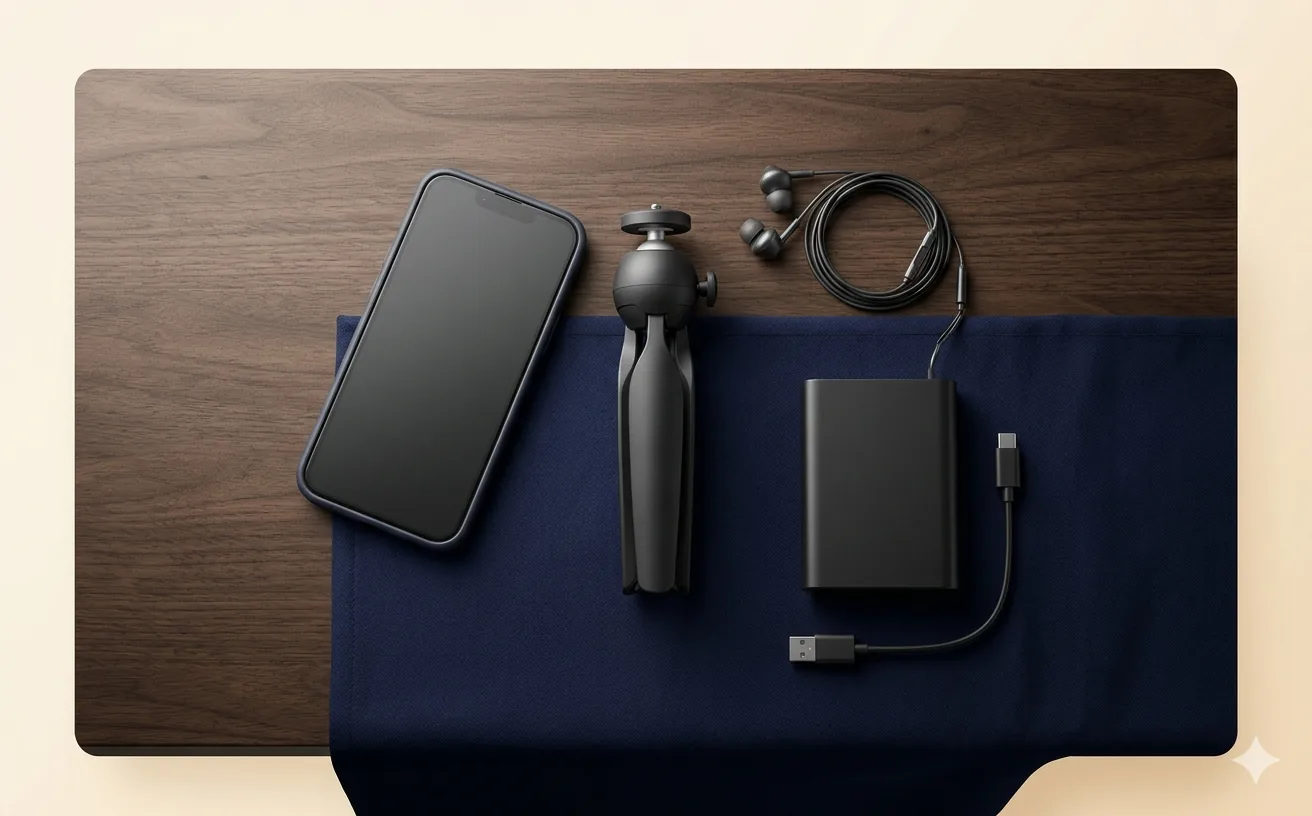
One of the most common misconceptions about funeral livestreaming is that you need expensive equipment, professional cameras, or technical expertise. With TributePoint, you do not need any of that. Here is everything you need:
- A smartphone — Any modern Android or iPhone with a working camera and microphone
- A stable internet connection — Wi-Fi is ideal, but 4G or 5G mobile data works well too (at least 2 Mbps upload speed)
- A TributePoint account — Free to create at tributepoint.co.za
- A tribute page — Created for your loved one (takes about 5 minutes)
Optional but helpful
- A phone tripod or stand — Keeps the camera steady during the service
- A power bank or charger — Livestreaming uses more battery than normal phone use
- Earphones with a microphone — Can improve audio quality in large venues
Before the service, TributePoint runs an automatic 30-second network test that measures your connection speed, packet loss, and latency. It will tell you the best quality setting (360p, 480p, 720p, or 1080p) for your current location. You do not need to guess.
How TributePoint Livestreaming Works
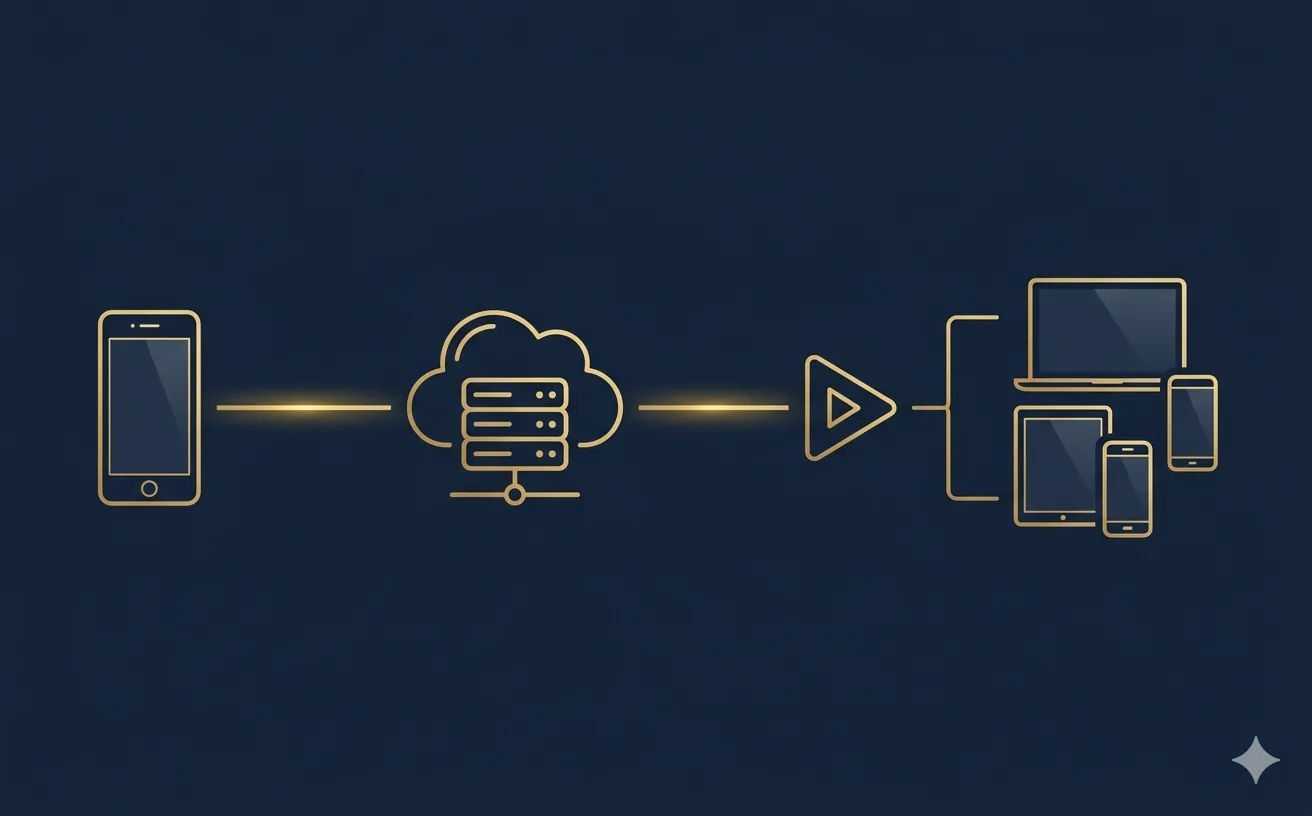
TributePoint uses a professional-grade streaming infrastructure that runs entirely in your phone's web browser. There is no app to download. Here is what happens behind the scenes:
- Your phone's camera captures the video and audio
- WebRTC technology sends the live feed to TributePoint's cloud servers in real time
- TributePoint's servers convert the feed and broadcast it to YouTube Live
- YouTube distributes the stream to all viewers worldwide with automatic recording
This means you get the reliability of YouTube's global streaming network, combined with the simplicity of just pointing your phone camera at the service. A TributePoint watermark appears on the stream, and the system automatically generates a branded thumbnail for your YouTube broadcast.
Step-by-Step: Go Live in 7 Steps
Here is the complete process, from creating a tribute to going live. Each step takes just a minute or two.
Create Your Tribute Page
Sign in to TributePoint and create a tribute for your loved one. Add their name, a photo, the date and venue of the service. This only takes a few minutes and gives you a dedicated memorial page that the livestream will be linked to.
Open the Livestream Manager
From your tribute dashboard, tap "Manage Livestream". This opens the stream control panel where you can start a new stream, schedule one for later, or add a manual streaming link (such as a Zoom or Facebook Live URL).
Tap "Go Live Now"
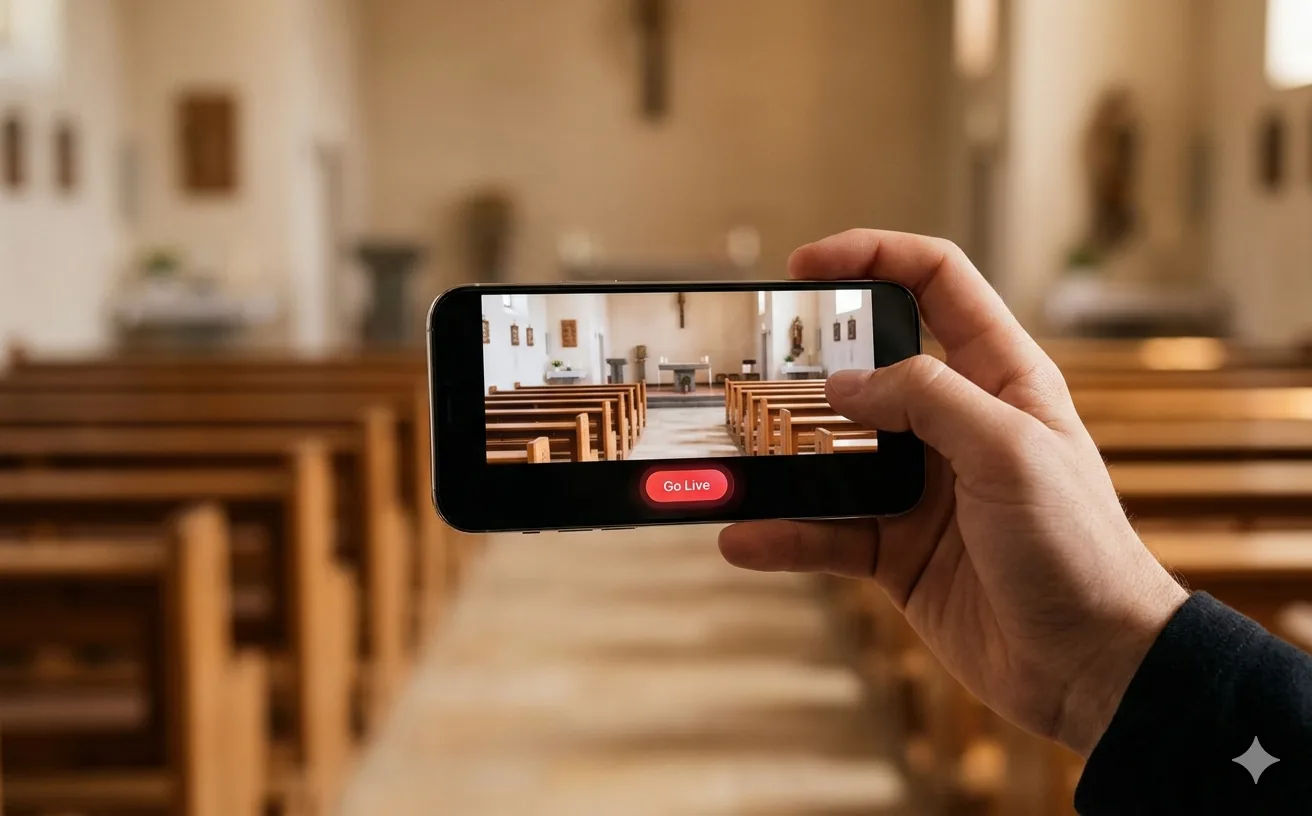
Press the red "Go Live Now" button. TributePoint will automatically create a YouTube broadcast for you — complete with a title, description, and a custom thumbnail generated from your tribute page. You will be redirected to the full-screen camera view.
Allow Camera & Microphone
Your browser will ask for permission to access your phone's camera and microphone. Tap "Allow". If you accidentally denied permission before, TributePoint shows step-by-step instructions to fix it in your browser settings.
Run the Network Test
A 30-second automatic test checks your internet upload speed, latency, and packet loss. Based on the results, TributePoint recommends the best video quality for your connection. You can accept the recommendation or choose a different quality manually.
Press the Go Live Button
When you are ready, tap the red pulsing "Go Live" button. TributePoint performs a quick pre-flight check (camera working, microphone active, signal detected) and then connects. Within about 30 seconds, your stream is live on YouTube. A red LIVE badge with a timer appears on screen.
Share the Link with Family
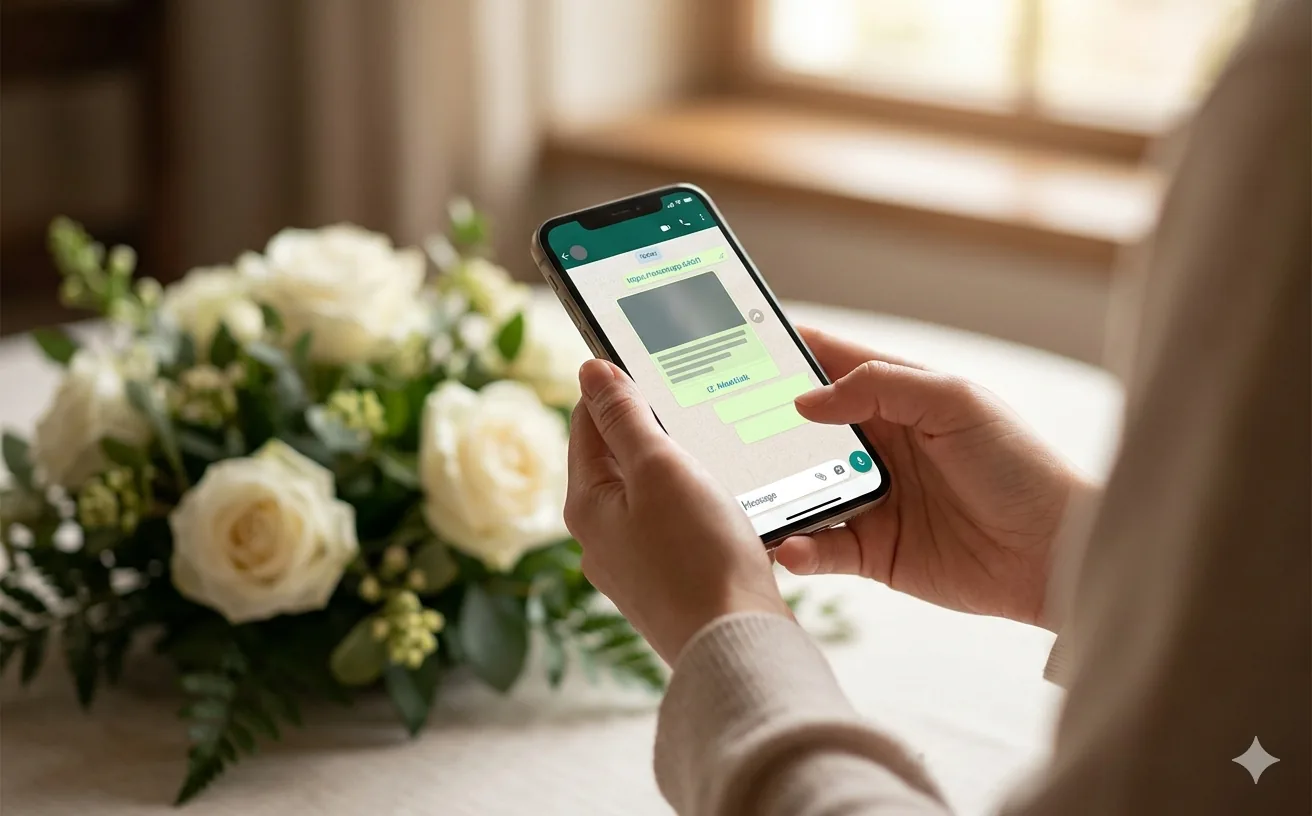
Share the YouTube watch link or your tribute page URL with family members via WhatsApp, SMS, email, or social media. Anyone with the link can watch the service live — on any phone, tablet, laptop, or smart TV, from anywhere in the world.
Ready to Set Up Your First Stream?
Create a free tribute page and go live in minutes — no downloads, no technical skills required.
Create a Tribute & Go LiveCamera Controls Explained
TributePoint's Go Live page is a full-screen camera interface designed to be simple but powerful. Here is every control available to you while streaming:
Flip Camera
Switch between front and rear camera with one tap. Rear camera is the default for filming the service.
Zoom Slider
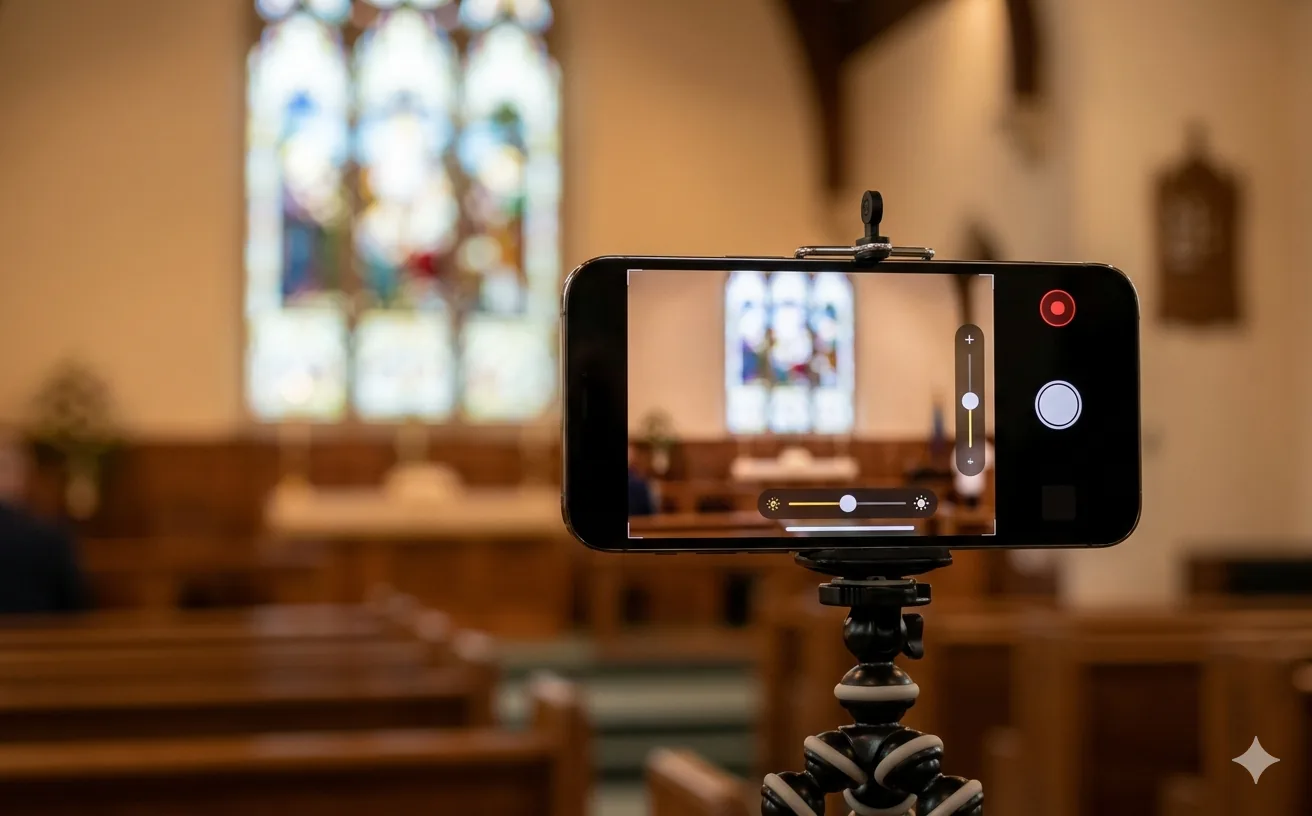
Slide vertically on the right to zoom from 1x to 5x. Useful for close-up shots of speakers or the podium.
Exposure & Brightness
Slide vertically on the left to adjust brightness from -2 to +2. Helpful in dim chapels or bright outdoor venues.
Flash / Torch
Toggle the phone's flashlight on or off for extra light in dark environments.
Mute / Unmute
Quickly mute or unmute your microphone. Useful during private conversations near the phone.
Tap to Focus
Tap the focus button, then tap on the screen to lock focus on a specific area — like the speaker's face or the podium.
Quality Selector
Choose between 360p, 480p, 720p, or 1080p. Higher quality needs faster internet. The network test recommends the best option.
Pause Stream
Pauses the live video and shows a standby image to viewers — the stream stays connected. Resume anytime with one tap.
Live Stats on Screen
While streaming, you can see real-time information on your screen:
- LIVE badge — Red indicator with animated dot confirming the stream is active
- Timer — Shows how long you have been streaming (HH:MM:SS)
- FPS and bitrate — Technical stats showing frames per second and upload speed
- Network quality — A coloured dot (green = excellent, orange = fair, red = poor) showing connection health
- Battery percentage — So you know when to plug in your charger
- YouTube status — Confirms the YouTube broadcast is receiving the feed
During the Live Stream
What happens if my internet drops?
TributePoint is built to handle unstable connections — a reality for many South African venues, especially in rural areas. If your internet drops during a stream:
- Automatic standby image — YouTube viewers immediately see a branded standby screen with your loved one's photo and the message "The service will begin shortly"
- Auto-reconnect — Within 4 seconds of your connection returning, TributePoint automatically reconnects, re-publishes your camera feed, and restarts the broadcast
- No action needed — You do not need to press any buttons. The system handles everything
Pausing the stream
If you need to temporarily stop showing video — for example, during a private family moment — tap the Pause button. This replaces your live camera feed with the tribute's standby thumbnail image. YouTube viewers see the standby image instead of black or frozen video. The stream remains connected, and you can resume with one tap when ready.
Switching devices
Need to hand the phone to someone else, or switch to a different device? TributePoint detects when a new device joins the same stream and transfers the broadcasting session seamlessly. Simply open the Go Live page on the new device and it will continue from where the first device left off.
Stopping the stream
When the service is over, tap the red Stop button. A confirmation dialog appears to prevent accidental stops. Once confirmed, TributePoint ends the YouTube broadcast and redirects you back to the Stream Manager, where you can view the recording.
Livestreaming uses your camera, microphone, screen, and internet connection simultaneously. A full streaming session can drain 20-30% battery per hour. Keep a charger or power bank within reach — TributePoint shows your battery percentage on the streaming screen so you are never caught off guard.
The Live Program Feature
Beyond the video stream, TributePoint includes a Live Program feature that gives viewers a real-time order of service. This is like a digital programme booklet that updates automatically as the service progresses.
What viewers see
- The full order of service — Every item listed with the activity name, person responsible, and time
- Current item highlighted — The active portion of the service is highlighted in purple with a pulsing indicator
- Completed items — Checked off with a green tick as the service progresses
- Progress bar — Shows how far through the programme the service has reached
- Auto-updating — The page refreshes automatically every few seconds, so viewers never need to reload
The programme director (a designated person from the family or funeral home) can update the current item from their phone, and every viewer's screen updates instantly. This gives remote family members a clear sense of where the service is and what is happening next.
Sharing with Family & Viewers
Once your stream is live (or scheduled), there are several ways to let family and friends know how to watch:
Share the YouTube link
Every TributePoint stream creates a YouTube broadcast with its own watch URL. Share this link via WhatsApp, SMS, email, Facebook, or any messaging platform. Anyone with the link can watch — no YouTube account needed.
Share the tribute page
Your tribute page on TributePoint can embed the YouTube stream directly. Sharing the tribute URL gives viewers the stream plus all the memorial details — obituary, photos, funeral notice, and condolence messages — in one place.
Schedule in advance
If you know the date and time of the service in advance, you can schedule the stream ahead of time. TributePoint will create a YouTube broadcast link immediately — even before you go live — allowing you to share the link with family days before the funeral so they can save the date and be ready to watch.
Send the link at least 30 minutes before the service starts. Include a short message like: "The funeral service for [Name] will be streamed live at [time]. Click the link to watch." Many viewers will be elderly or not tech-savvy — keep the message simple.
After the Service Ends
When you stop the live stream, the recording does not disappear. Here is what happens:
- YouTube recording — YouTube automatically saves the full recording of your livestream. It becomes a regular YouTube video that family can watch again at any time.
- Tribute page link — You can link the recording to your tribute page, so visitors can watch the service even after it has ended.
- Stream Manager history — TributePoint's Livestream Manager shows your completed streams with a "View recording" link for easy access.
This means the service is not just a one-time event. It becomes a lasting video memory that family members can revisit — next week, next year, or decades from now.
Tips for a Smooth Funeral Live Stream
Live streaming a funeral does not require perfection — the family watching remotely simply wants to be present. But a few practical steps can make a big difference:
Before the service
- Test your connection at the venue. Arrive 15-20 minutes early and run TributePoint's network test from the exact spot where you will stream. If the signal is weak, try moving closer to a window or the venue's Wi-Fi router.
- Charge your phone fully. Start with 100% battery. Bring a power bank as backup.
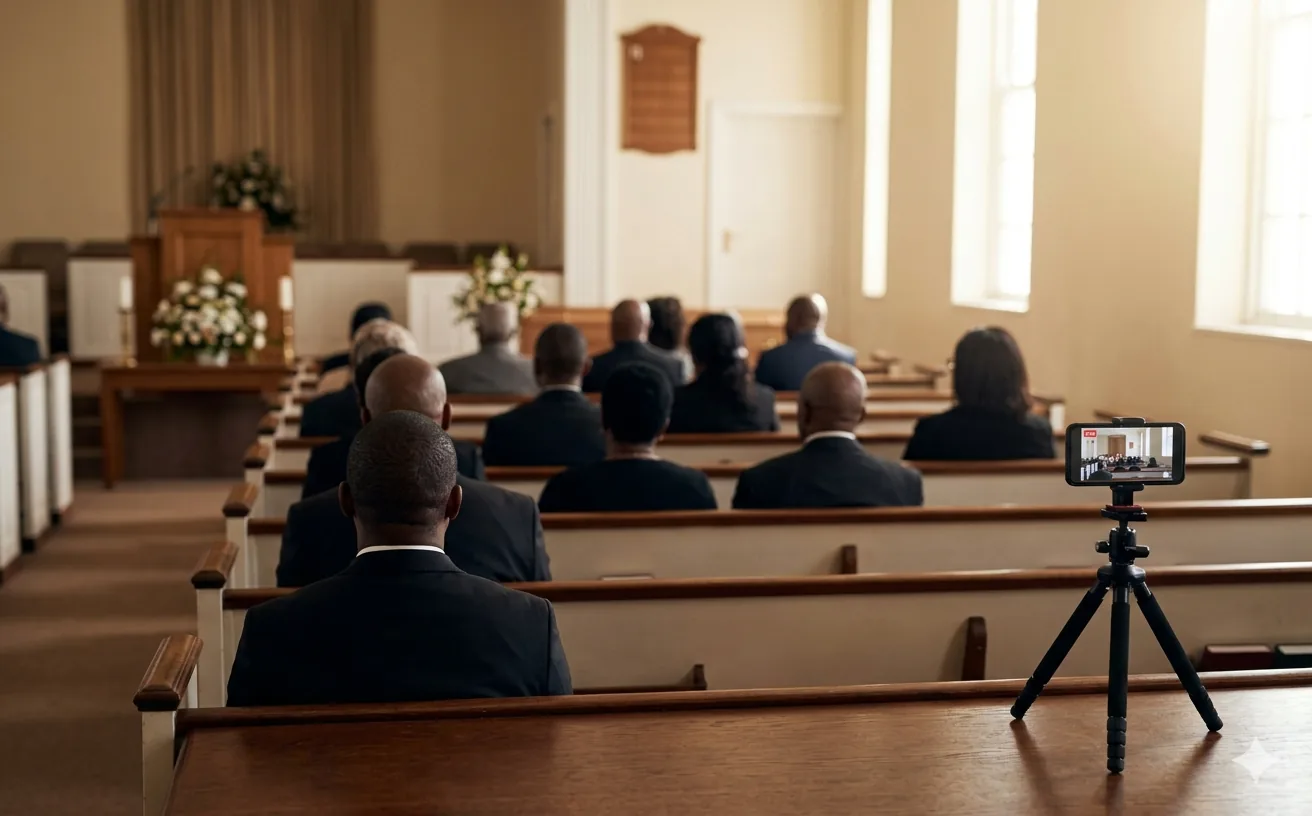
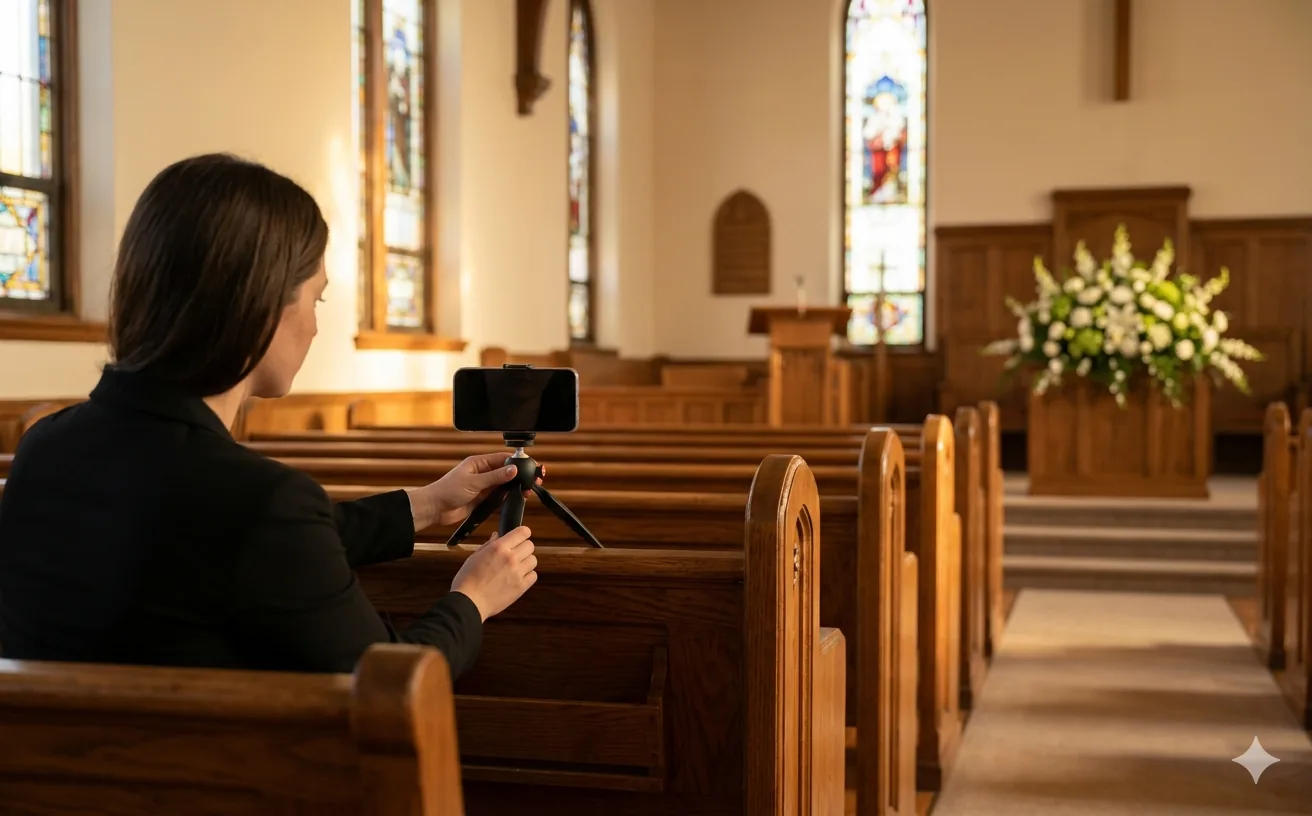
- Use a tripod or prop your phone up. A steady camera is far easier to watch than a shaky handheld shot. Even leaning your phone against a hymn book on a pew works in a pinch.
- Position yourself with a clear view. Choose a spot where you can see the podium, speakers, and coffin without obstruction. The back corner of the venue usually works well.
- Turn on Do Not Disturb. Incoming calls and notifications will interrupt the camera feed. Switch your phone to Do Not Disturb or Silent mode before going live.
- Share the link early. Send the YouTube watch link to family at least 30 minutes before the service so they have time to set up their device.
During the service
- Keep the phone as still as possible. Avoid panning or moving the camera around too much. A steady, wide shot is best for remote viewers.
- Use the zoom sparingly. A slight zoom to frame the speaker is fine, but constant zooming in and out is distracting.
- Mute during private moments. If the family requests a private moment, tap the mute button or pause the stream.
- Monitor the live badge. If the red LIVE badge and timer are showing, your stream is working. Trust it and focus on the service.
Venue considerations
- Ask the funeral director for permission. Most venues are fine with livestreaming, but it is respectful to ask first.
- Check the venue's Wi-Fi. If the venue has Wi-Fi, connect to it for a more stable stream than mobile data.
- Be discreet. Position yourself where you will not block other attendees' view. The back or side of the venue is ideal.
Everything You Need Is Already on Your Phone
No apps. No cameras. No technical knowledge. TributePoint turns your smartphone into a professional funeral broadcast tool — completely free.
Start a Free TributeFrequently Asked Questions

Kabelo Ndlovu is TributePoint's Product Education Lead. He explains TributePoint's digital memorial, livestreaming, programme, donation, and funeral-home tools in clear, practical language for families and funeral professionals.
Also helpful: Create a TributePoint memorial page when you are ready to share service details, or explore more practical support in our South African funeral guides.